A sitemap is a file that lists the pages you want search engines to find. Submitting it to Google Search Console takes about two minutes, but it is easy to get wrong, and the error messages are not always clear. This guide walks through the full process, from checking the file to reading the status after you submit.
What a sitemap does (and does not do)
A sitemap is a hint, not a command. It tells Google which URLs exist on your site and, optionally, when they last changed. It helps Google discover pages faster, especially on a new site with few inbound links. It does not guarantee that a page will be indexed, and it does not affect how a page ranks.
If your pages are well linked from your homepage and menus, Google can usually find them anyway. A sitemap is still worth having because it gives you a clean report in Search Console showing how many URLs Google read from it.
Before you submit: check your sitemap
Open your sitemap in a browser first. For most static sites it lives at https://yourdomain.com/sitemap.xml. Confirm the following:
- It loads without a redirect or login. A sitemap behind a password or a redirect loop cannot be read.
- It is valid XML. You should see a list of
<url>entries, each with a<loc>address. - URLs match your preferred version. If your site uses HTTPS and no
www, every URL in the file should do the same. - Only indexable pages are listed. Leave out pages that redirect, return an error, or carry a
noindextag. - It stays within the size limits. A single sitemap file can hold up to 50,000 URLs or 50 MB uncompressed. Larger sites split the list into several files and point to them from a sitemap index.
Step-by-step: submit a sitemap in Search Console
1. Verify your site. You need a verified property in Google Search Console before you can submit anything. A domain property covers every subdomain and protocol, while a URL-prefix property covers one exact address.
2. Open the Sitemaps report. In the left-hand menu, find Sitemaps under the Indexing section.
3. Enter the sitemap address. In the "Add a new sitemap" box, type only the part after your domain, such as sitemap.xml. Search Console already knows the domain from your property.
4. Click Submit. The sitemap appears in the "Submitted sitemaps" table with a date and a status.
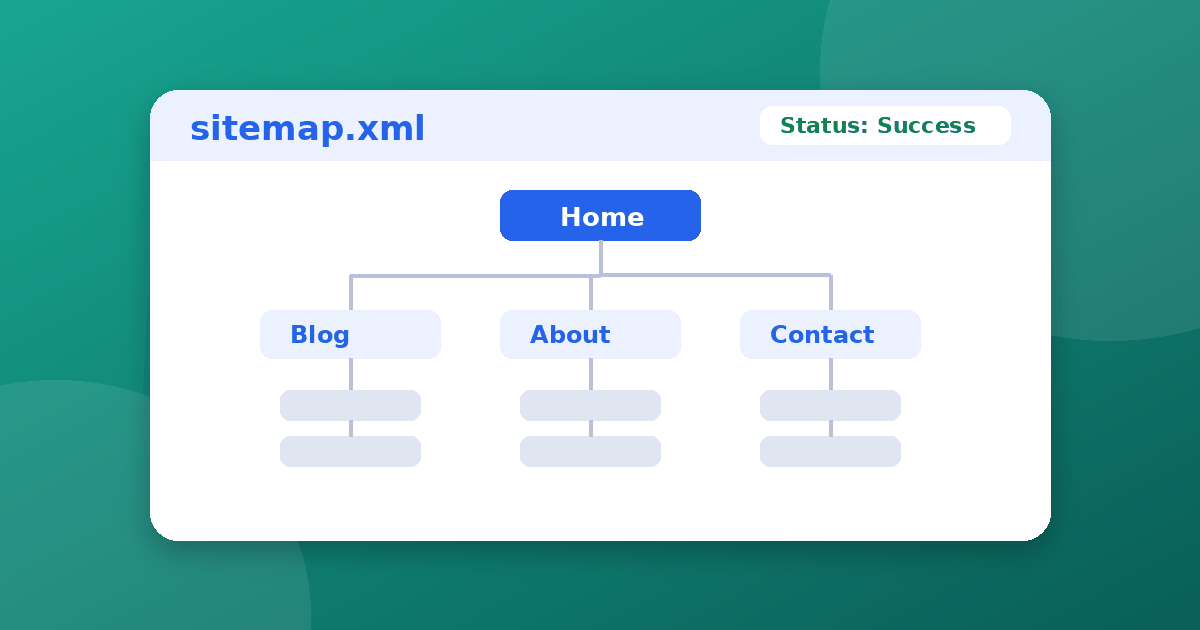
5. Check the status. Refresh after a few minutes. A healthy sitemap shows a status of Success and a count of discovered pages.
Add your sitemap to robots.txt
You can also point crawlers at your sitemap from robots.txt. Add one line with the full address:
User-agent: *
Allow: /

Sitemap: https://yourdomain.com/sitemap.xml
This works for any crawler that reads robots.txt, not just Google, and it costs nothing. It does not replace submitting in Search Console, because only the report gives you feedback.
What the sitemap statuses mean
- Success: Google fetched and read the file. This does not mean every URL is indexed.
- Has errors: The file was read, but some entries have problems, such as invalid URLs or a bad date format. Open the report for details.
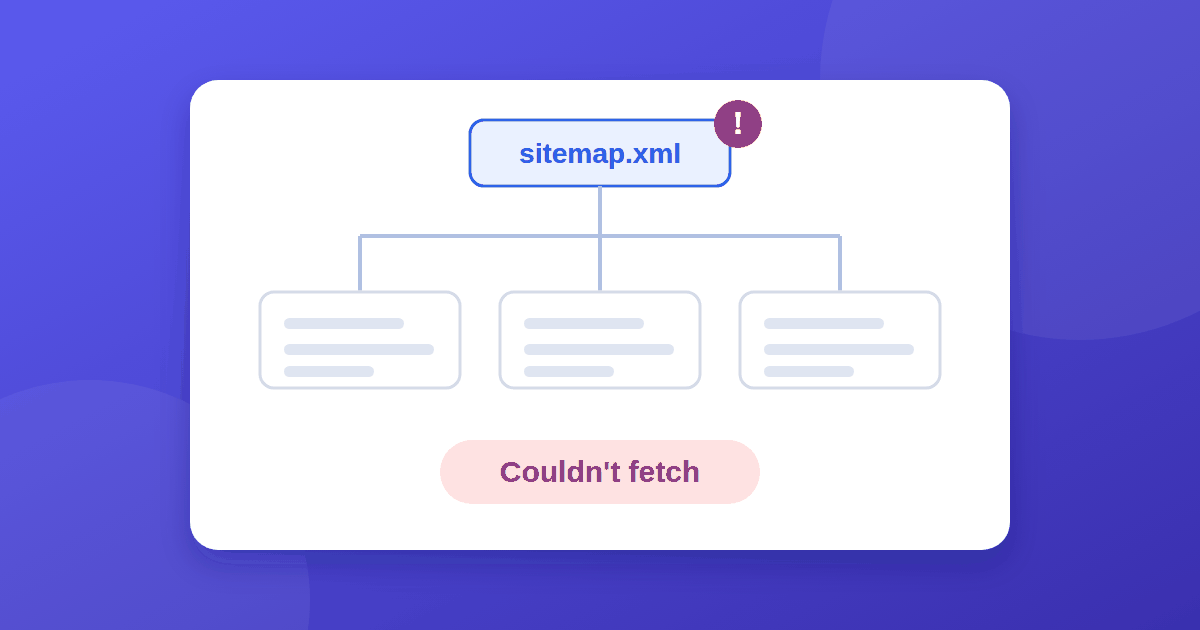
- Couldn't fetch: Google could not retrieve the file at all. Our guide to fixing "Sitemap couldn't fetch" covers the common causes, including blocked files, wrong paths, and server errors.
- Pending: The submission was received but not processed yet. Give it time.
Common mistakes
- Submitting the full address in a property that already includes the domain, which creates a doubled path
- Listing URLs with the wrong protocol or a different
wwwsetting than the live site - Including pages that redirect or return a 404 error
- Blocking the sitemap file in robots.txt or behind a firewall rule
- Forgetting to update the sitemap after adding new pages
- Expecting instant indexing, which no sitemap can promise
How long until pages show up?
Search Console usually reads a new sitemap within minutes to a few days, but indexing takes longer and varies by site. A brand-new domain with little authority can wait weeks for some pages. We break down realistic timelines in how long Google takes to index a new website. If your pages are indexed but you see no traffic data, read why a new site shows no impressions.
Frequently asked questions
Do I need to resubmit my sitemap every time I add a page? No. Once Google knows your sitemap address, it rechecks the file on its own. Just keep the file updated, and resubmit only if you change its location.
Can I submit more than one sitemap? Yes. Large sites often use several files, or one sitemap index that lists them. You can submit each file or just the index.
Does a sitemap help with ranking? Not directly. It helps Google discover pages. Ranking depends on content quality, links, and relevance. A solid on-page SEO checklist does more for rankings than the sitemap itself.
Should my sitemap include every page? Include the pages you want in search results. Skip thank-you pages, internal search results, and duplicates.
The takeaway
To submit a sitemap, verify your property, open the Sitemaps report, enter the file path, and confirm the status says Success. Keep the file clean, list only indexable URLs, and reference it in robots.txt. A sitemap speeds up discovery, but good internal links, such as the ones covered in our guide to internal linking, are what keep your pages easy to find.